
 חדש תמונה
⚡ צור
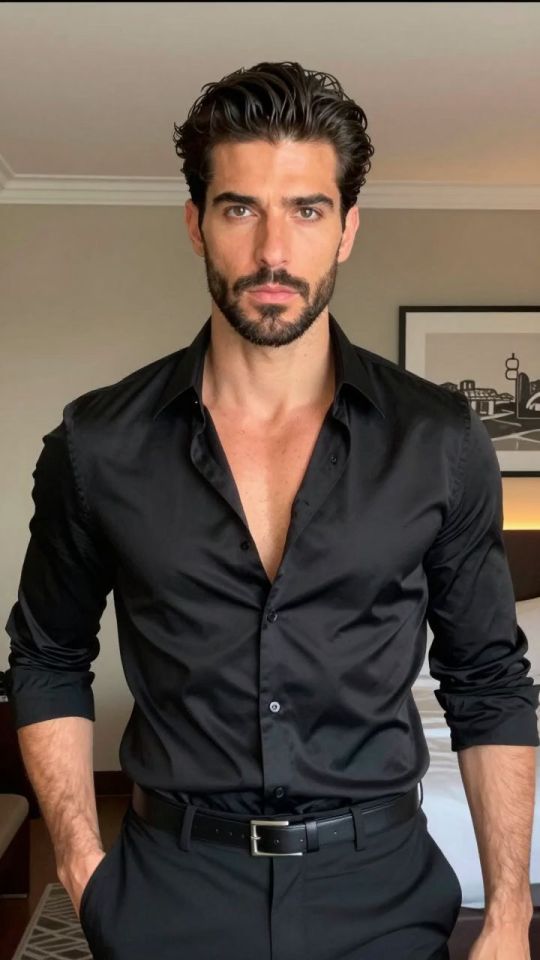
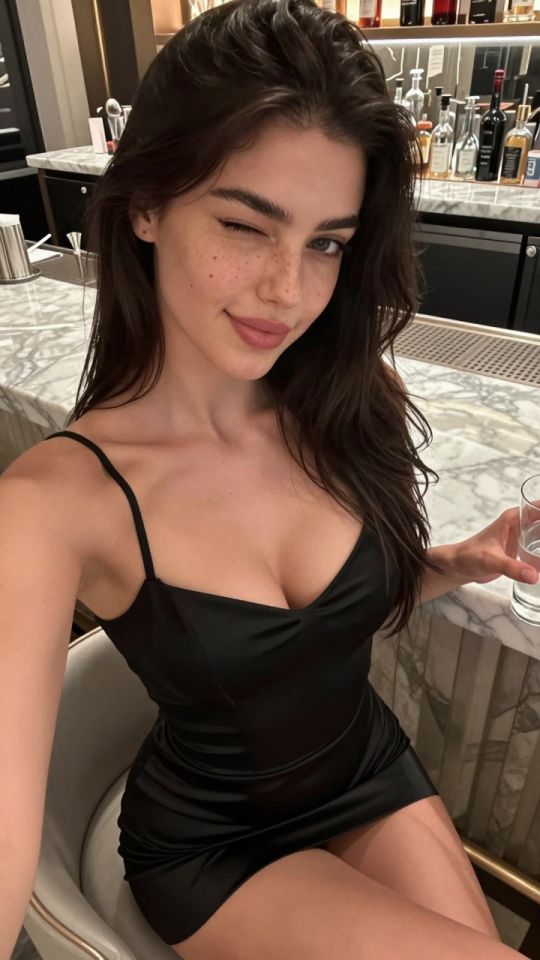
Pick an effect, upload your photo, and the built-in recipe does the rest. Same photo, far more reliable results.
You have been writing prompts by hand. Templates skip all of that — pick a card below, upload your photo, and get the same scene in one click.
חדש תמונה
⚡ צור
 5שנ׳
⚡ צור
 חדש תמונה
⚡ צור
 5שנ׳
⚡ צור
 חדש 5שנ׳
⚡ צור
 חדש תמונה
⚡ צור
 חדש תמונה
⚡ צור
 חדש 5שנ׳
⚡ צור
 5שנ׳
⚡ צור
 5שנ׳
⚡ צור
 5שנ׳
⚡ צור
 חדש תמונה
⚡ צור
On this page
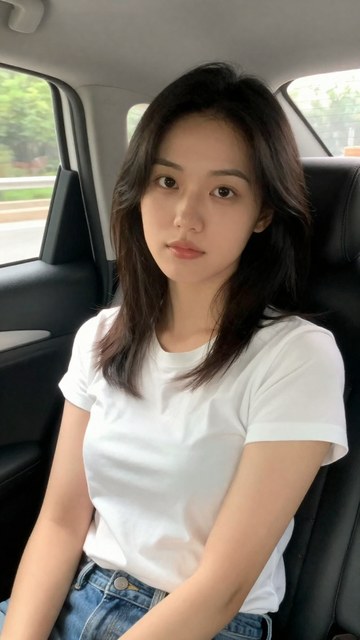
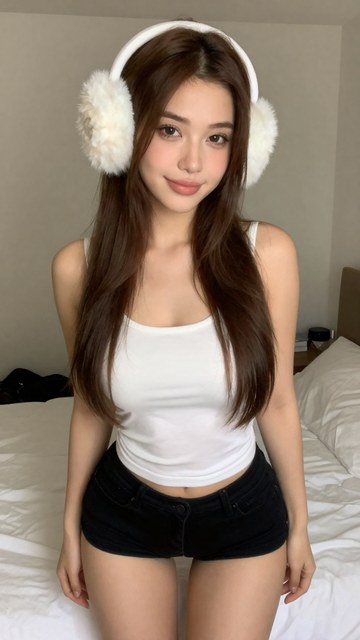
ה AI undress tool takes a photo of a clothed person and generates a version of the same photo with the clothes removed. You upload a picture, the model reads the pose, the body shape and the lighting, and rebuilds the image as if the person were nude. The face, the pose, the background and the lighting stay the same — only the clothing changes.
It is a one-click tool, not a prompt box. There is no description to write and no settings to tune. The result depends almost entirely on the input photo: a clear, well-lit, front-facing photo gives a convincing result, while a dark, blurry or oddly angled photo gives the model too little to work with. If you want control over the scene, generate the image first and then undress it; if you already have a photo you like, undress it directly.
Undressing a photo takes four steps, and the whole process usually takes under a minute.
Here is what the undress tool offers, and why it works the way it does.
Upload a photo and get the nude version in under a minute. No prompt, no settings, no editing skills needed.
The model rebuilds the body to match the pose, the lighting and the skin tone of the original photo, so the result looks like the same person.
Your input photo is deleted automatically after generation, and the result stays in your account only. Nothing is published or shared.
Most undress jobs finish in under a minute, so you can try a few photos and pick the best result without waiting.
Results generated with credits carry no watermark, so the finished image is ready to keep or use however you like.
Portraits, full-body shots, selfies and generated images all work, as long as the photo is clear and the person is easy to see.
The undress tool has no prompt box, so the input photo is the entire instruction. These five habits decide whether the result looks real.
The model needs to see the body to rebuild it. A photo taken straight on, with the person facing the camera, gives the model the most information. A side view or a back view gives it less to work with, and a photo taken from above or below distorts the proportions. If you have a choice, pick the most front-facing photo you have.
Bright, even light is the single biggest quality factor. A photo taken in daylight or a well-lit room gives the model clear skin tones and sharp edges. A dark or backlit photo forces the model to guess, and the result looks muddy. A plain background helps too — a busy background gives the model more edges to get wrong.
The model reconstructs the body from the shape it can see. Fitted clothing shows the body shape clearly, so the reconstruction is accurate. Loose, baggy clothing hides the shape, and the model has to invent more of the body — which is where the result starts to look wrong. A photo in a t-shirt and jeans will usually beat a photo in an oversized hoodie.
The tool rebuilds what the photo implies, it does not see through clothing. It cannot recover details that are not visible in the original photo, and it will not invent a tattoo, a scar or a birthmark that is hidden under clothing. If the result looks plausible and the pose and lighting match, that is a good result. If you need a specific body detail, generate the image from scratch with a prompt instead.
Running the same photo twice gives you almost the same result. If the body shape is wrong, the skin tone is off, or an edge looks melted, the problem is the input photo — try a different one with better light, a clearer pose, or tighter clothing. One good input photo beats ten retries of a bad one.
People use the undress tool for a few specific things:
The tool works best when the input photo is already good. A sharp, well-lit, front-facing photo is the foundation; the undress step only removes the clothing.
You can try it with the credits included in a new account. After those run out, each undress costs credits, and the exact price is shown on the button before you confirm. You only pay for the generations you actually run.
A clear, front-facing photo with good light, the person filling most of the frame, and fitted clothing. Daylight or a well-lit room beats a dark room, and a plain background beats a busy one. Blurry, dark or oddly angled photos give the model too little to work with.
כן. Your input photo is deleted automatically after generation, and the result stays in your account only. Nothing is published, shared or sold, and nobody else can see what you uploaded or what you created.
The tool works on photos of adults only. It must not be used on photos of minors, or on photos of a real person without their consent. Misuse violates the site terms and can lead to your account being closed. Use it on your own photos, on generated images, or on photos you have permission to edit.
Change the input photo, not the tool. Running the same photo again gives almost the same result. Try a different photo with better light, a more front-facing pose, or tighter clothing. If the body shape is still wrong, generate the scene from scratch with the image generator instead.
לא. The input photo is deleted automatically after generation. Only the result is kept, in your account, until you delete it. If you want to keep the original, keep a copy on your own device before you upload it.
Ready to try it? Upload a clear photo in the generator at the top of this page and see the result in under a minute.
התמונה שלך נמחקת לאחר היצירה..
עיין בקבציםפעולות שנכשלו מזוכות באופן אוטומטי. התוצאות מגיעות תוך האוסף שלי.
התחבר עם גוגל כדי להתחיל ליצור
פותח התחברות מאובטחת לגוגל……